
How to combine files into one PDF
combinepdf.com merges any mix of PDFs and images into a single PDF file, in the order you choose. It accepts PDFs and common image formats (JPG, PNG, BMP, TIFF, HEIC, WebP, AVIF, SVG). Non-PDFs are converted to PDF pages on the fly, then everything is stitched into one document.
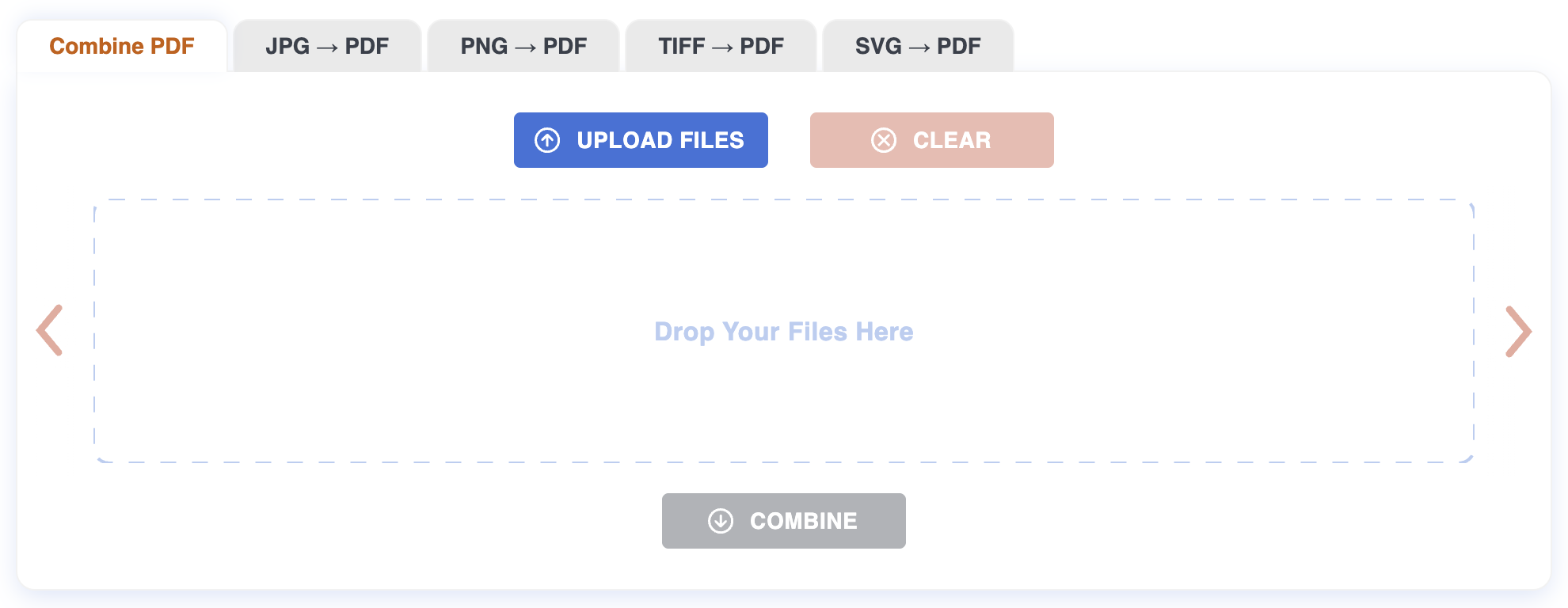
Step 1: Upload
Drag the files onto the page, or click to pick them. Up to 20 files at once, 200 MB each. PDFs upload as-is; images are rendered to A4 pages automatically. You can keep adding files until you're done.
Step 2: Arrange
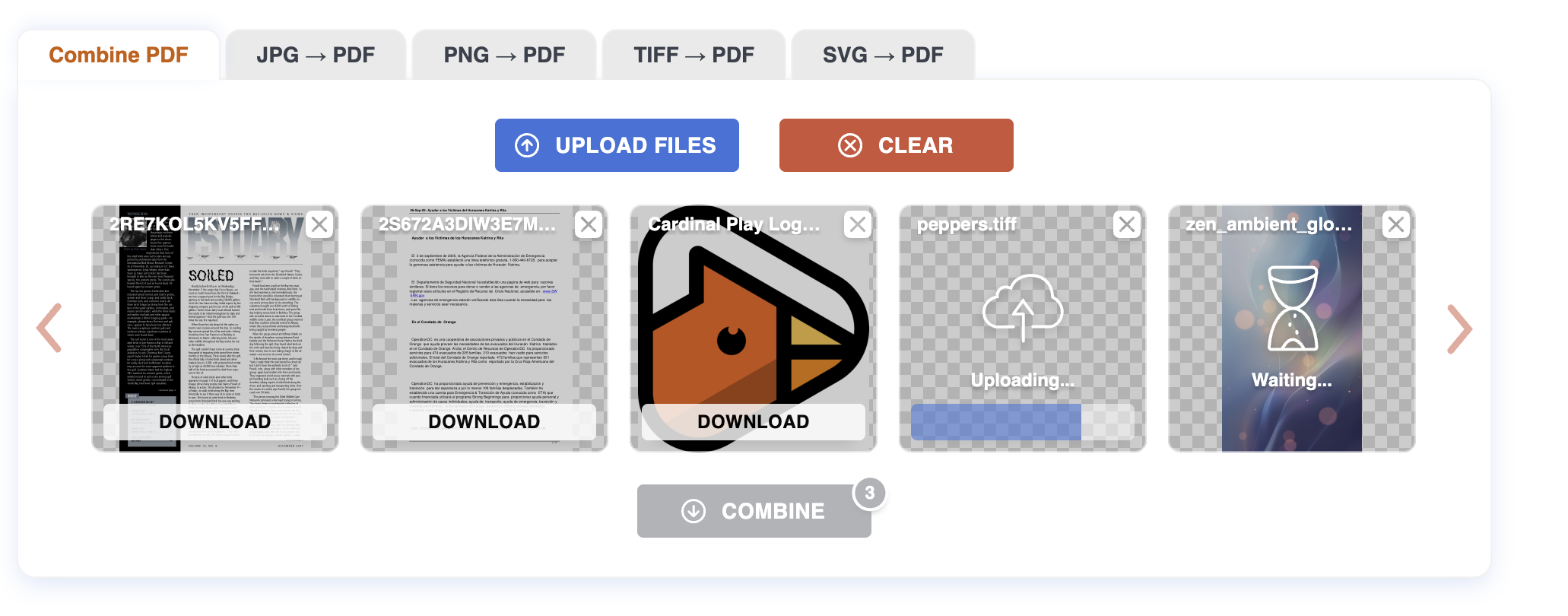
Each file appears as a tile with a thumbnail. Drag tiles to reorder them — left/top of the list goes first in the combined PDF, right/bottom goes last. Click the X on a tile to drop a file from the set.
Step 3: Combine and download
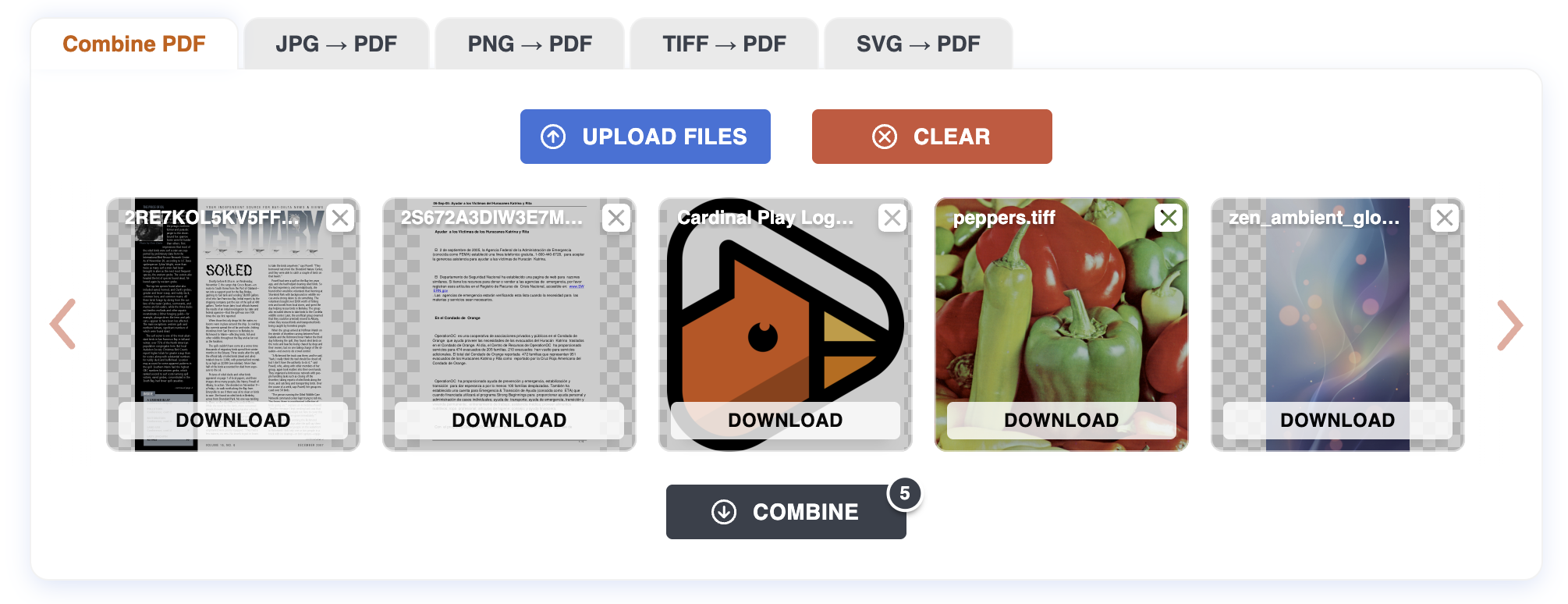
When the order is right, click Download all. The combined PDF is built on the server in the order you set, and a single file is downloaded when it's ready. Each individual file also has its own download button if you only want one.
Tips
- Mix freely. A scanned cover page in JPG, a Word-exported PDF, and a few HEIC photos all combine into one PDF without any prep.
- Image pages are A4 by default. Each image is fitted to an A4 page at 96 DPI, preserving aspect ratio. Pages with different shapes are kept; orientation is auto-detected.
- Order matters. The exact order of tiles is the exact order of pages in the output.
- Original PDFs keep their page sizes. If you combine an A4 PDF with a US Letter PDF, both keep their original dimensions in the result.
What can be tricky
Mixed-resolution images. A 4000 px scan and a 600 px screenshot side by side will produce one crisp page and one blurry one. Resize before uploading if you care.
Very large images. Photos straight from a phone may take a moment to render. Files over 200 MB are rejected; resize or compress them first.
SVG fonts. If your SVG references a custom web font, the rendered page will fall back to a system font.
What won't work
Password-protected PDFs. Remove the password first.
Files over 200 MB. Compress or split them first.
Corrupt files. If the file won't open in a normal viewer, it won't combine here either.
Privacy
Files are uploaded over HTTPS and processed on our server. Both the originals and the combined PDF are deleted automatically after one hour. No account required.
For more on how PDF assembly works, see the Blog.